
🥣 Mix Profiles
Mix Profiles combine multiple Graph Profiles using a mix function (Maximum, Minimum, Average, Difference).
Choosing a function:
- Maximum: prioritize the hottest input (most common for case/exhaust fans).
- Minimum: keep speeds low unless all inputs are hot (niche).
- Average: smooth overall response when multiple parts contribute heat.
- Difference: react to temperature gaps (e.g., internal vs. ambient) to maintain airflow margins.
TIP
After mixing, you can fine‑tune with an Overlay Profile
Mix Profile vs. Mix Custom Sensor
Both tools combine multiple inputs, but they operate at different levels of the control chain:
| Mix Custom Sensor | Mix Profile | |
|---|---|---|
| What it combines | Temperature sensor readings | Graph Profile outputs (fan duty %) |
| Output type | A virtual temperature sensor | A fan duty signal |
| Best when | Sensors have similar ranges and dynamics | Sensors have different ranges or response curves |
| Feeds into | Any Profile as a temperature source | Directly controls a fan channel |
Use a Mix Custom Sensor when you want a blended temperature to drive a single Graph Profile. Use a Mix Profile when each temperature source needs its own tuned curve before blending.
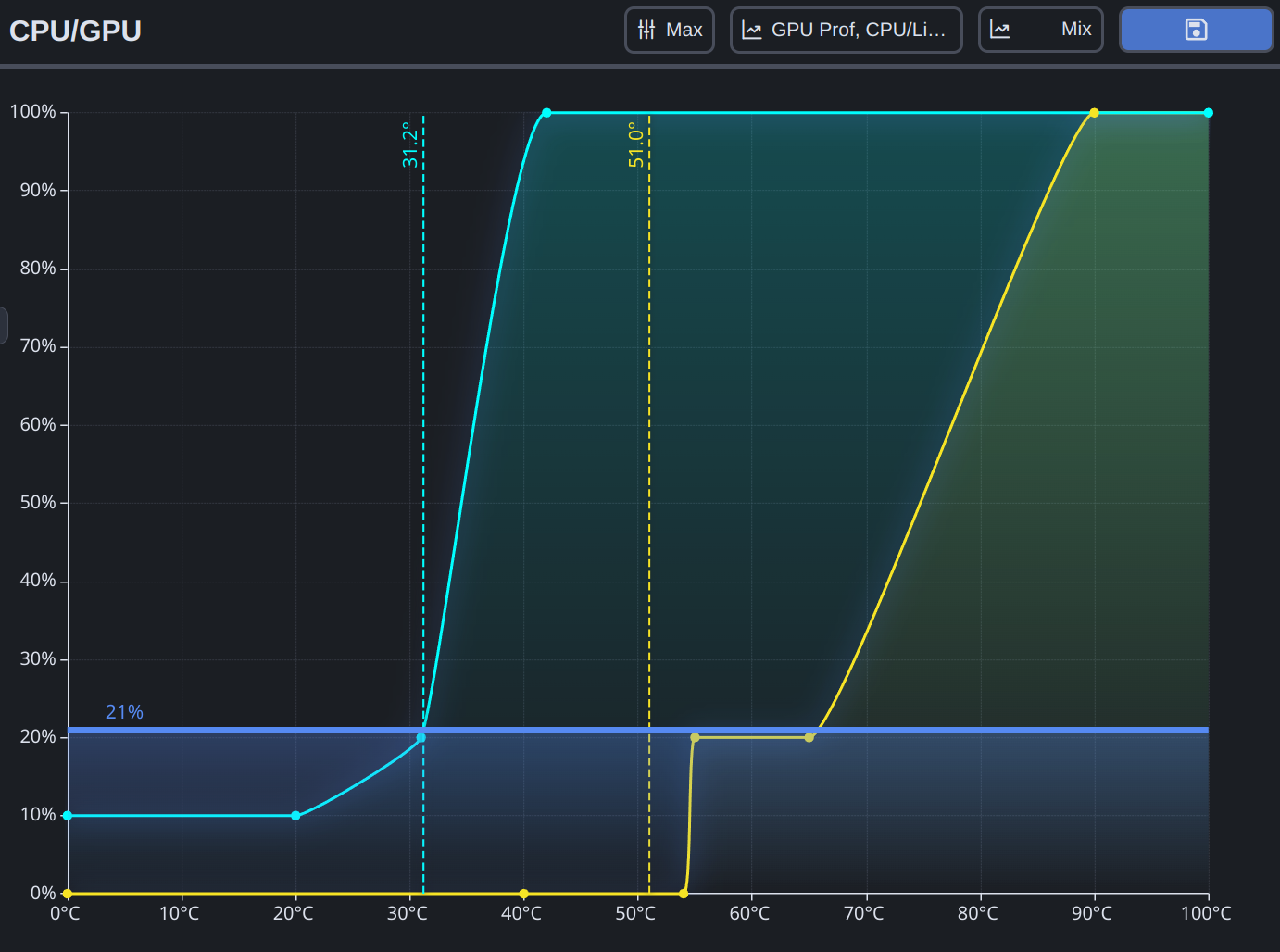
Example: CPU + GPU case fans
Goal: drive case fans from whichever of CPU or GPU is hotter, using separate curves for each.
- Create a Graph Profile named "CPU Curve" — set your CPU temperature sensor as the source.
- Create a Graph Profile named "GPU Curve" — set your GPU temperature sensor as the source.
- Create a Mix Profile — select both "CPU Curve" and "GPU Curve", choose the Maximum function.
- Apply the Mix Profile to your case fan channels from the Controls page.
The fans now respond to whichever component is hotter, with each input independently shaped by its own curve.
TIP
To fine-tune per fan group (e.g., front intake vs. rear exhaust), layer an Overlay Profile on top of the Mix Profile.
Example:
See Also
- Custom Sensors - Mix temperature sensors instead of profile outputs
- Overlay Profiles - Layer per-group offsets on top of a Mix Profile
- Profiles - Understand Graph Profiles before combining them
- Control Flow - See how Mix Profiles fit the full signal path